
Appearance
Create your account
Creating an account is free and takes a minute. You can also look around first and sign up when you're ready — the app will offer it when you try to do something that needs it.
Signing up
When you first open the app you'll be asked to accept the End User License Agreement, then walked through what Blue Trails does. At the end you choose where to start and create your account.
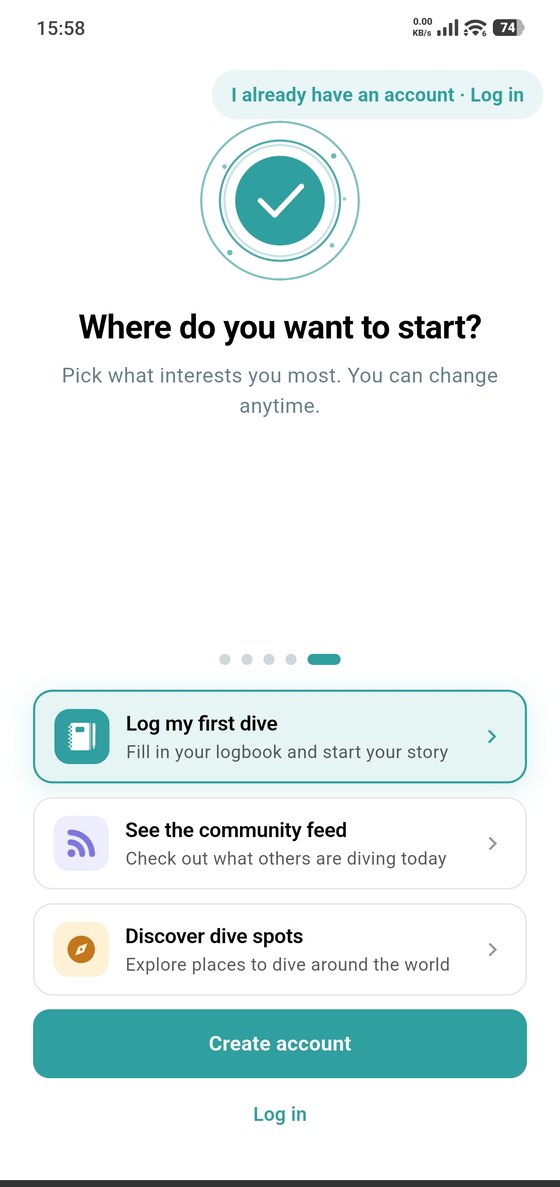
The three shortcuts — log your first dive, see the community feed, discover dive spots — only decide where the app drops you. You can do all three afterwards.
With your email
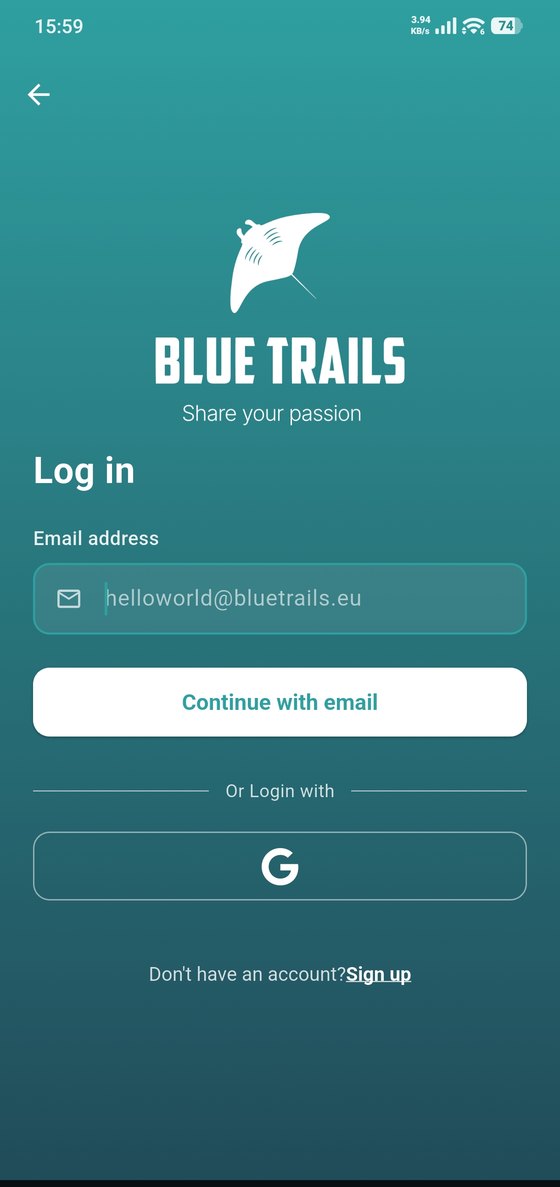
The sign-in screen on Android. On iPhone and iPad you'll also see an Apple button next to Google.
Enter your email and tap Continue with email. We send you a 4-digit code.
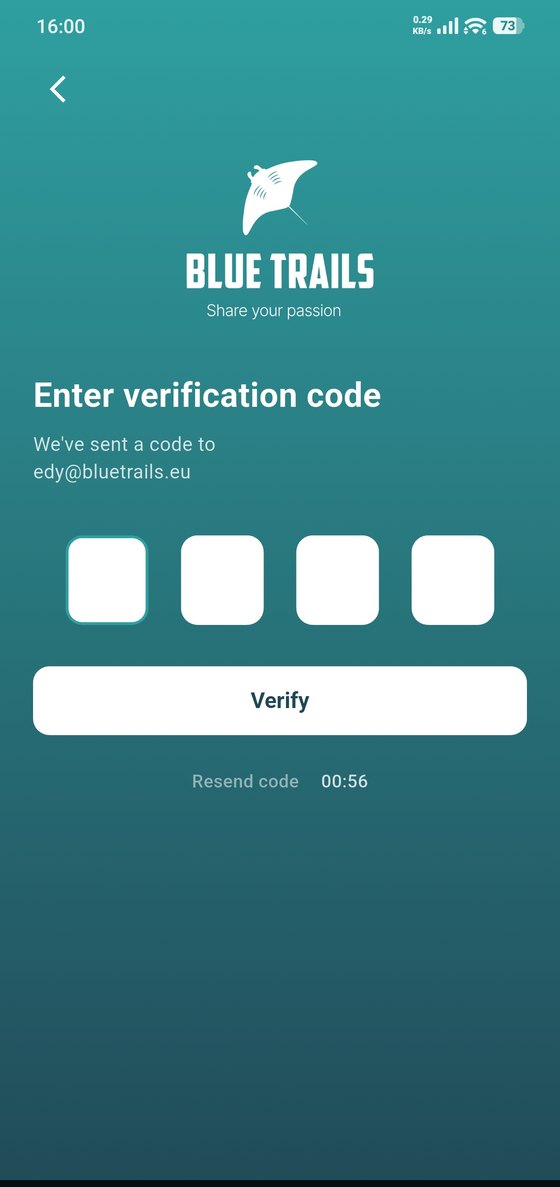
Type the code and you're in. If it doesn't arrive, check your spam folder — the screen lets you ask for a new one after a short countdown.
With Apple or Google
Under the email field there's a second way in, with no password to remember:
- Google — on both iPhone and Android.
- Apple — on iPhone and iPad. Apple's own rules mean it doesn't appear on Android.
Tap the one you use, pick your account, and you're in. Nothing else to fill in.
If you already have a Blue Trails account with the same email address, signing in with Apple or Google links the two rather than creating a second account — so you can switch between ways of getting in without losing anything.
"Hide My Email" and a brand-new account
Apple lets you hide your real address when you sign in. If you're creating your account for the first time and Apple isn't sharing an email, Blue Trails can't create it — an account needs an address to send you anything.
The fix is on your device: Settings → your Apple ID → Sign in with Apple → Blue Trails → Stop using Apple ID, then try again and allow the email to be shared. This only affects the very first sign-up; once your account exists it never comes up again.
There's no password to remember
Blue Trails doesn't use passwords. However you get in — email, Apple or Google — there's nothing to invent and nothing to forget:
- With your email, every sign-in works the same way as the first one: you ask for a code and type the four digits.
- With Apple or Google, your device handles it.
A leftover in the app
You may still find Change Password under Account settings. It's from the earlier way of signing in and does nothing you need to do; it's being removed.
Next
Take a tour of the app.