Appearance
A tour of the interface
Once you're signed in, the portal always has the same three anchors. Learn these and you can find anything.
The sidebar (left)
Your main navigation. The exact items depend on how many centers you have, but you'll always see:
- Dashboard — what's coming up across the center you're looking at.
- Dive Centers — your center(s). Expands to the sections of the center you're currently working in: Overview, Offerings (Services, Rentals and Seasons) and Plans & Bookings.
- Clients — your client book, shared across the whole account.
- Settings — company, profile, team, preferences and more.
The top bar
- On the left, the center switcher ("Select a dive center"). If your account has more than one center, this is how you move between them — the whole portal then shows that center's data.
- On the right, your notifications and your avatar menu (profile, settings, and log out).
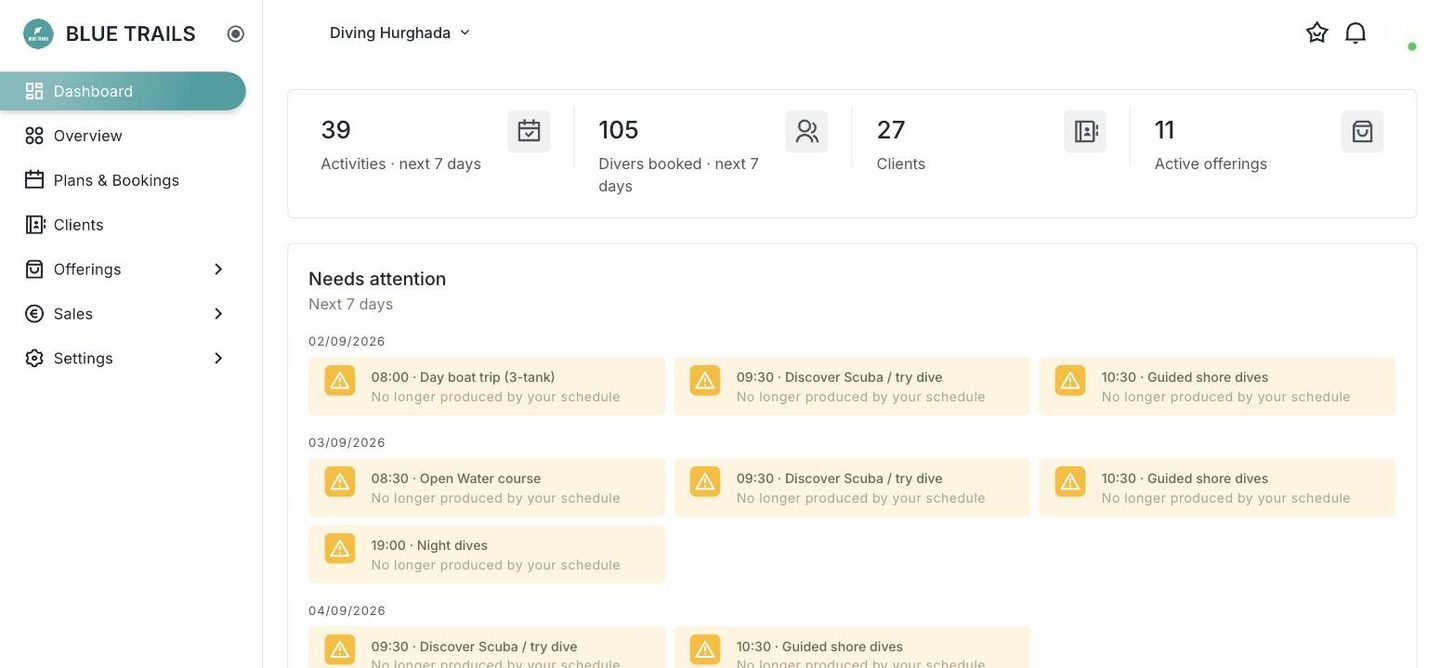
The dashboard
The first thing you see. Four numbers up top — upcoming activities, divers booked, clients and active offerings — then Needs attention, anything to sort out before your next activities run.
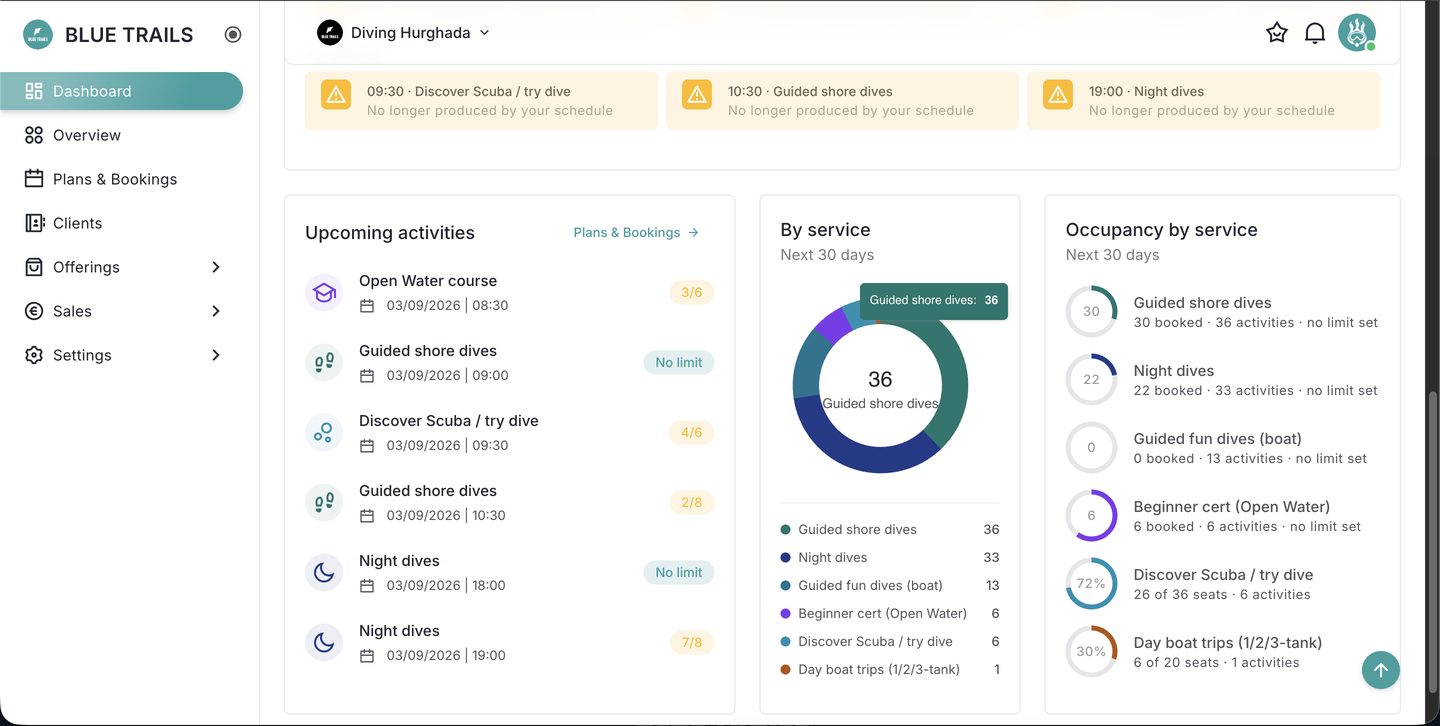
Scroll on and you get the other half: what is coming up, which services are selling and how full each one is.
Working inside a center
When you open a center, the sidebar grows to show its sections:
- Overview — the center's public profile at a glance, plus what's left to complete.
- Offerings — everything you sell, split into Services (what happens at a time and fills the calendar), Rentals (gear, which never does) and Seasons (the date ranges your services run in).
- Plans & Bookings — your calendar and the divers on each activity.
From here, every task in this guide is a click or two away.